
Part of the guide Send iMessage via API: iMessage for GoHighLevel, Zapier, API and Webhooks
On this page
- Key takeaways
- Why do businesses want to send iMessage in bulk?
- How does a bulk iMessage sender work?
- What do you need before you send?
- How do you run an iMessage campaign in SMS8, step by step?
- How many iMessages can one Mac send a day?
- What should a bulk iMessage say?
- Can you send bulk iMessage from your CRM or code?
- How much does a bulk iMessage sender cost on SMS8?
- Why choose SMS8
- Start your first iMessage campaign
Key takeaways
- A bulk iMessage sender needs a Mac signed into Messages. With SMS8, that Mac is yours, running the SMS8 Gateway app on macOS 14 Sonoma or newer.
- Upload a list, pick iMessage as the channel, write one message with merge tags, and SMS8 sends it as blue bubbles to Apple contacts and as SMS to everyone else.
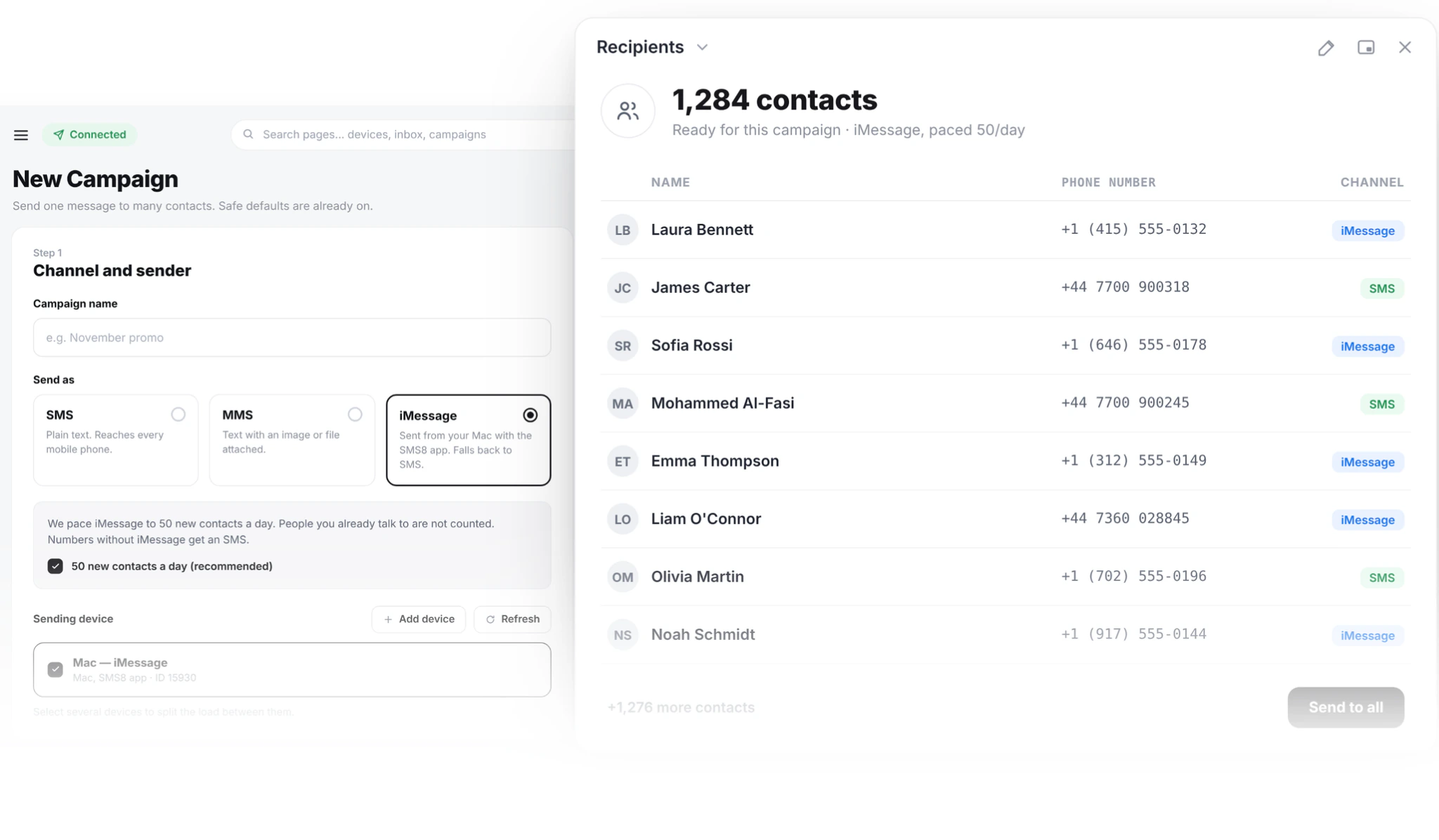
- SMS8 paces iMessage to 50 new contacts a day per Mac. People you already talk to do not count, and anything over 50 continues the next day.
- Replies come back to one shared inbox, threaded by contact, next to your SMS conversations.
- A Mac counts as one device on your plan: USD 29 a month for one, with no fee per iMessage. The 3-day trial includes 30 messages and needs no card.
To send iMessage in bulk, you need a Mac signed into an Apple ID, a tool that feeds it your list at a safe pace, and a fallback for contacts who are not on iMessage. SMS8 does all three. You install SMS8 Gateway on a Mac you own, pair it with your account, and run a campaign from the same screen you use for SMS. Apple contacts get an iMessage from your Apple ID, everyone else gets the same message as an SMS, and every answer lands in one inbox your team works from a browser. This guide shows the setup, the pacing rules that keep your Apple ID healthy, and what it costs. For the product overview, see sending iMessage from your business with SMS8.
Why do businesses want to send iMessage in bulk?
Most businesses that ask for a bulk iMessage sender have the same problem: their texts are not getting answered. A green bubble from an unknown number looks like every other marketing text. A blue bubble from a business people already know looks like a message from a person, and it shows typing indicators and read receipts the way a normal conversation does.
The pain usually shows up in a few ways:
- Lead follow-up goes cold. A sales team texts new enquiries, but replies trickle in because the message looks automated.
- Staff send by hand. Someone copies a message into Messages on their own iPhone and sends it one contact at a time, with no record for the rest of the team. Our guide to staff texting from personal phones covers why that breaks down.
- Managed iMessage services cost per line. Many iMessage providers run the Mac for you and bill per line or per sender each month, which adds up as soon as you need a second sender.
- Half the list is on Android. iMessage never reaches Android phones. A tool that sends only iMessage leaves part of your list without the message.
If your texts are being ignored in general, start with our guide on what to do when customers do not answer your texts. If the issue is reaching iPhone users in a way that feels personal, a bulk iMessage campaign from your own Mac is the fix.
How does a bulk iMessage sender work?
Apple has no server API for iMessage. Every iMessage, from any provider, is sent by a Mac signed into an Apple ID. The question is whose Mac it is and how the list reaches it.
With SMS8, the flow looks like this:
- Your Mac runs SMS8 Gateway. It is signed into Messages with the Apple ID you want to send from, and it shows up on your Devices page next to any Android phones.
- You start a campaign from the SMS8 dashboard, or a send comes in from GoHighLevel, Zapier or the API.
- SMS8 hands each message to the Mac at a pace that keeps your Apple ID looking like a person, not a broadcast tool.
- The Mac sends it as iMessage to contacts who are on iMessage. Numbers without iMessage get a regular SMS instead, through a paired iPhone or an Android phone.
- Replies come back into the SMS8 inbox and your webhooks, threaded by contact, whichever channel carried them.
You do not have to check which contacts are on iMessage first. The campaign is written once and each person gets it on the channel their phone supports. The glossary explains the difference between iMessage and SMS, and what a blue bubble means for your contacts.
The video shows how to send bulk messages to iPhone and Android contacts from one SMS8 account.
What do you need before you send?
A short checklist before your first iMessage campaign:
- A Mac on macOS 14 Sonoma or newer. Any Mac that runs SMS8 Gateway will do. A small second-hand Mac mini left on a shelf is the usual choice, since it is quiet, cheap to run and easy to leave on.
- Messages signed in. Sign the Mac into Messages with the Apple ID you want to send from, and send one message by hand to check iMessage is active. Many businesses use a separate Apple ID so work messages stay apart from personal ones.
- Always on and online. The Mac sends only while it is awake and connected. Set it to stay awake on power. SMS8 Gateway starts by itself after a restart.
- Two permissions to send, Full Disk Access to receive. During setup, macOS asks for two permissions. Allow both. To bring replies into SMS8, also allow Full Disk Access in System Settings. Without it the Mac still sends, but replies stay on the Mac.
- An SMS path for Android contacts. Pair an Android phone or an iPhone so contacts without iMessage still get your message as an SMS.
- An opted-in list. A CSV or Excel file of people who agreed to hear from you, with a phone column.
How do you run an iMessage campaign in SMS8, step by step?
- Create your account. Sign up at app.sms8.io. The 3-day trial includes 30 messages and does not ask for a card.
- Install SMS8 Gateway on the Mac. Download it from your Devices page, enter the 6 character pairing code, allow the permissions and send a test.
- Import your list. Upload a CSV or Excel file. Numbers are checked on import, duplicates are sent once and blacklisted numbers are skipped. Extra columns like
first_nameorcompanybecome merge tags. - Pick iMessage as the channel. When you create the campaign, choose iMessage. Numbers that are not on iMessage get the same message as an SMS.
- Write a message that sounds like you. Use the contact's name, keep it short, end with one clear question or action, say who you are and add an opt-out line.
- Test, then schedule. Send to yourself and a colleague first. Then pick a time and set quiet hours so nothing goes out at night.
- Work the replies. Answers land in the shared inbox, threaded by contact. Your team replies from a browser, not from the Mac.
How many iMessages can one Mac send a day?
SMS8 paces iMessage to 50 new contacts a day per Mac. People you already have a thread with are not counted, so a reminder or a follow-up to an existing customer goes out normally. If a campaign has more than 50 new contacts, the rest continue the next day automatically.
This pace exists for a reason. Apple can slow down an Apple ID that sends like a broadcast tool. An Apple ID that starts conversations at a human rate, with messages people expect and answer, stays healthy. Losing a sender in the middle of a campaign costs far more than a few extra days.
Two practical ways to plan around it:
- Add Macs for more new contacts per day. Each Mac is a separate sender with its own 50 a day. A list of 300 new contacts takes six days on one Mac and three days on two.
- Split by channel. Use iMessage for your high-value segment, such as warm leads or VIP customers, and send the broad list as SMS from your Android phones in the same account. Android SMS campaigns go out at one message every 10 to 30 seconds per SIM, with no daily cap from SMS8.
Our guide to iMessage marketing and blue bubble texting goes deeper into when a blue bubble beats a green one and how to measure the results.
What should a bulk iMessage say?
A bulk iMessage works when it reads like a one-to-one text. A few rules that hold up:
- Open with the name and the reason. "Hi {first_name}, it is Sam from the studio. Your class pack runs out on Friday." The contact knows who is writing and why in the first line.
- Ask one question. "Want me to hold your usual Tuesday slot?" invites a reply. A reply turns a campaign into a conversation.
- Keep it short. Two or three sentences. No wall of text, no list of offers.
- Send to people who know you. Customers, members, leads who filled a form. Never a bought list.
- Make opting out easy. Add "Reply STOP to opt out" to marketing messages. In SMS8, anyone who replies STOP is opted out of every future campaign on your account.
Good jobs for bulk iMessage include booking confirmations and reminders, lead follow-up after a form or a call, order and pickup updates, renewal nudges and invitations to an event. For newsletters and big promotional blasts, SMS from your Android phones is the better tool, and it runs on the same plan.
Can you send bulk iMessage from your CRM or code?
Yes. The Mac is just another SMS8 device, so anything that sends through SMS8 can send as iMessage.
- GoHighLevel. SMS8 is a GoHighLevel SMS provider through its marketplace app. Workflow steps, drips, Conversations and manual sends can go out through the Mac, and replies thread back into the GHL contact.
- Zapier. A form entry, a CRM update or a spreadsheet row can send an iMessage. An incoming iMessage can start a Zap through the SMS8 new message trigger.
- The REST API. Use the normal send request and pick the paired Mac as the device. In Node.js with
sms8-sdk:
import { Sms8 } from 'sms8-sdk';
const sms8 = new Sms8({ apiKey: process.env.SMS8_API_KEY });
const res = await sms8.sendSMS({
  phone: '+14155550100',
  message: 'Hi Ana, your table for 4 is confirmed for 7pm. Reply here if anything changes.',
  deviceId: 1234,   // the ID of your paired Mac on the Devices page
});
if (res.success) console.log('queued as', res.messageId);
Replies reach your webhook in the same shape as SMS, so nothing downstream needs to know which channel carried the message. The full walkthrough is in our iMessage API tutorial for business.
How much does a bulk iMessage sender cost on SMS8?
A Mac counts as one connected device on your plan, the same as an Android phone. SMS8 charges no fee per iMessage, and iMessage itself travels over the internet at no cost.
| Plan | Monthly | Billed yearly (per month) | Connected phones or Macs | Team seats |
|---|---|---|---|---|
| One Device | USD 29 | USD 14.50 | 1 | 1 |
| Five Devices | USD 89 | USD 44.50 | 5 | 10 |
| Twenty Devices | USD 229 | USD 114.50 | 20 | 40 |
A common setup is Five Devices: one or two Macs for iMessage and a few Android phones for SMS, with ten team seats in one shared inbox. Unlimited SMS and MMS are included on every plan. See the full SMS8 pricing page for what each plan includes.
Why choose SMS8
- The Mac and the Apple ID are yours. You control the sender, the number and the conversations. Nothing is locked into a provider's hardware.
- A flat price with no fee per iMessage. USD 29 a month for one Mac or phone, with unlimited SMS and MMS too. Pay yearly and it costs half.
- SMS fallback built in. Contacts without iMessage get the same message as an SMS from your own phone, so one campaign reaches the whole list.
- Pacing that protects your Apple ID. 50 new contacts a day per Mac, existing conversations not counted, overflow sent the next day.
- iMessage and SMS in one inbox. Your team answers every reply from a browser, with team seats included, and the history stays on one contact.
- Works with GoHighLevel, Zapier and the API. The same Mac serves your campaigns, your CRM workflows and your code.
Start your first iMessage campaign
A bulk iMessage sender does not need a managed line or a per-message bill. It needs a Mac you own, sensible pacing and a fallback for Android. SMS8 gives you all three on one flat plan. Start the 3-day trial, pair your Mac, and send your first iMessage campaign to the people who already know you.