
Part of the guide Shared Team SMS Inbox: Reply From One Business Number
On this page
- Key takeaways
- Why one phone does not work for a team
- How does a shared team SMS inbox work?
- Assignment: who owns which thread?
- Internal notes: talk about the customer without texting them
- Team texting for clinics
- Team texting for field service
- Team texting for dispatch
- Who can see and send what?
- Privacy basics, in plain words
- How SMS8 compares with Front and OpenPhone
- How to set it up in an afternoon
- What does it cost?
- Why teams choose SMS8 for team texting
Key takeaways
- A shared team SMS inbox lets several people answer texts sent to one business number, each with their own login, from a browser.
- Assign each thread to one person, leave internal notes the customer never sees, and mark the thread resolved when it is done.
- Give each teammate only the phones and SIMs they need. Read-only access suits trainees and auditors.
- Keep sensitive details out of texts. An SMS can be read on a lock screen by anyone holding the phone.
- With SMS8 the number is the SIM in your own Android phone, so patients, clients and drivers see a number they already know.
Team texting means several people working from one business text number at once, without passing a phone around. For clinics, field service companies and dispatch desks, the setup that works is a shared SMS inbox: texts arrive on one number, appear in a web inbox, and whoever is on shift claims the thread, replies, adds a note for colleagues and marks it resolved. The customer only sees the business number. This guide shows how to set that up, how to split the work, and the privacy basics a team should agree on, in plain words. For the product overview, see the SMS8 shared team SMS inbox.
Why one phone does not work for a team
In most small clinics and service companies, the business mobile lives with one person. Every reply waits for them. When that person is busy, on a break or off sick, texts pile up. Passing the phone around the office exposes whatever else is on it, and nobody can tell afterwards who wrote what.
The problems are the same in every industry:
- No owner per conversation. Two people answer the same patient, or nobody does.
- No history for the next shift. The morning team does not know what the evening team promised.
- No record of who sent what. When a reply goes wrong, there is no way to find out who sent it and help them.
- No limits. Everyone who holds the phone can see every thread and send anything.
A shared inbox fixes these without changing the number your customers use.
How does a shared team SMS inbox work?
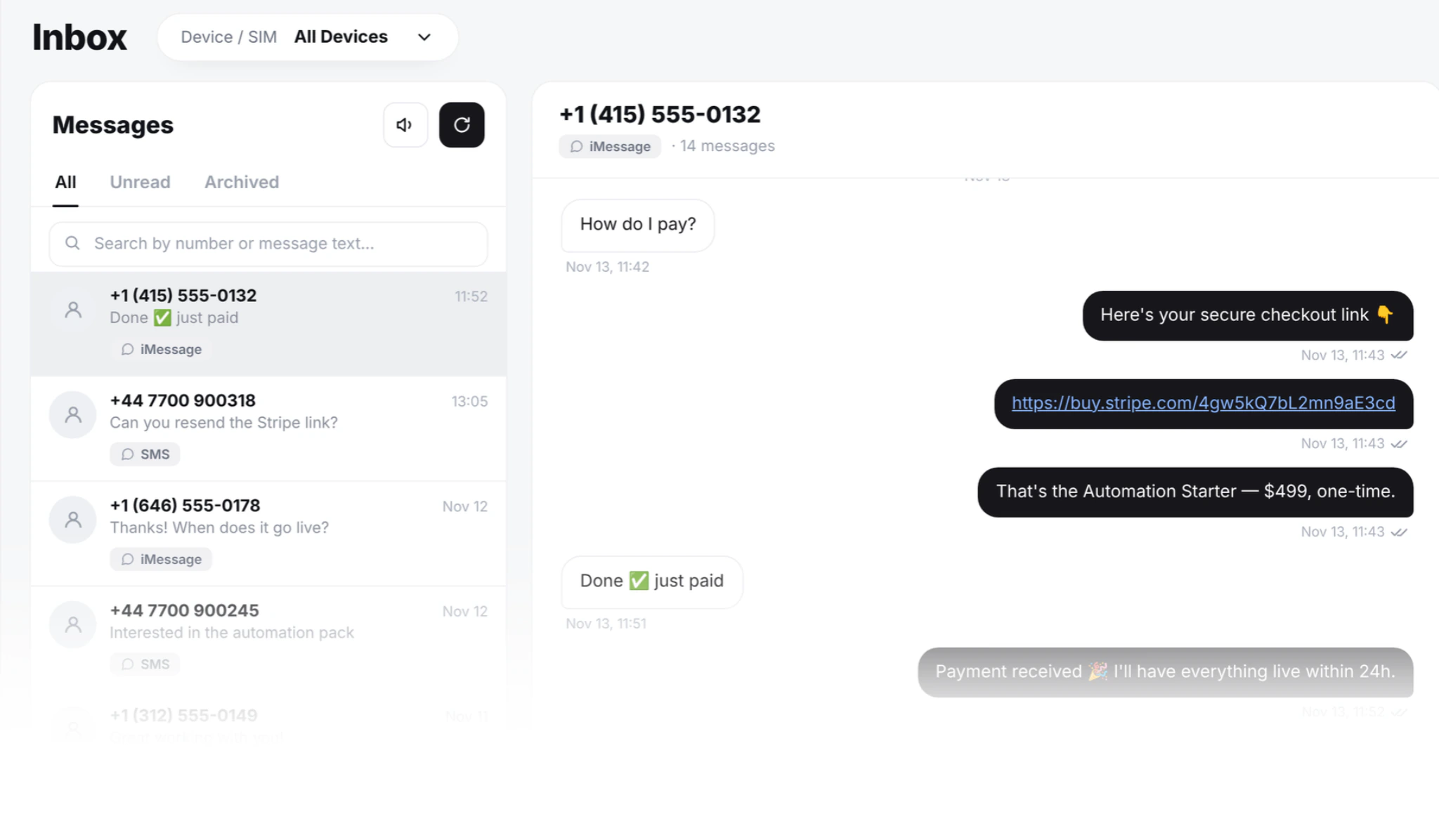
With SMS8, the business SIM goes into an Android phone that stays plugged in at the office. The phone is paired with your SMS8 account and sends and receives in the background. Every text to that number appears in a web inbox at app.sms8.io, threaded by contact. Teammates sign in with their own login from any modern browser, on a desktop, laptop or the browser of their own phone. Nothing needs installing on the computers.
When anyone replies, the message leaves the SIM the conversation came in on. A dual-SIM or eSIM phone can carry two business lines, and both show in the same feed while each thread stays on its own number. Our guide to dual-SIM and eSIM SMS gateways explains how that works, and the guide to turning an old Android phone into an SMS gateway covers the phone, the charger and the battery settings that keep it online.
Assignment: who owns which thread?
The single most useful habit in team texting is that every open thread has one owner. In SMS8 anyone on the team can claim a thread, and from then on it is clear who is answering. A few working rules help:
- Claim before you reply. If a thread is assigned to a colleague, leave it to them or add a note instead of answering over them.
- Hand over on purpose. At the end of a shift, reassign open threads to whoever is next, with a note on where things stand.
- Resolve when it is done. That tells the rest of the team nothing more is needed on it.
- Use filters. Unread and tags keep a busy queue in order. Tags like "billing", "reschedule" or "urgent" make it easy to see what needs whom.
Internal notes: talk about the customer without texting them
An internal note sits inside the thread but is never sent. It is where colleagues leave context: "Called back, will confirm Thursday", "Driver says gate code is wrong, waiting on client", "Asked for the morning slot, none left this week". The next person reads the note and the messages together, so the customer does not have to repeat themselves.
Keep notes factual and short. They are a working record for the team, not a place for opinions about the customer.
Team texting for clinics
For a clinic, a dental practice or a salon, most texts are about time: confirming, moving and reminding. A typical setup:
- One phone at reception with the practice's mobile number, plugged in and left there.
- Each receptionist signs in with their own login and sees that line.
- Reminders go out the day before as a scheduled send, asking patients to reply to confirm.
- Replies land in the shared inbox. Whoever is at the desk confirms, reschedules or answers a question, and marks the thread resolved.
- Links and phone numbers are blocked for reception logins if you want, so staff cannot send URLs or account numbers by mistake.
Patients see the same number the receptionist called them from, which is the number many of them have already saved. Our SMS templates by industry include appointment reminders, recalls and missed-appointment messages that fit in one SMS.
Team texting for field service
Cleaners, plumbers, electricians and other field teams text customers to confirm a visit, share an arrival window or ask for access details. The office answers; the technician does the job. A typical setup:
- The office line sits on one phone at the office. Office staff answer from their computers.
- Each job thread is assigned to the coordinator handling that customer, with notes like access codes kept inside the thread instead of on paper.
- Overnight replies are waiting in order the next morning, threaded by contact.
- Technicians can have a login of their own with access to only the line they need, or read-only access to check job details.
Team texting for dispatch
Dispatch texts are short, frequent and time-sensitive: a job offer, a pickup time, a changed address, an "on my way". A shared inbox suits this because each driver or courier is one thread, and that thread can be assigned to whoever is dispatching that shift.
- One thread per driver. The full history with each driver stays in one place across shifts.
- Shift handover by reassignment. The outgoing dispatcher reassigns open threads with a note.
- Drivers reply to a mobile number they saved, not an unknown long code, which helps messages get read on the road.
- Automated job texts can come from your own system through the SMS8 API or an integration, and driver replies arrive in the same inbox and on your webhook.
- Urgent messages first. A message marked as priority goes ahead of anything else waiting on the same phone, so a route change does not sit behind a batch of reminders.
Who can see and send what?
Shared does not have to mean everyone sees everything. In SMS8 the owner invites teammates by email from the Team page, ticks the phones and SIMs each person can use, and chooses what they are allowed to send. The invite link stays valid for seven days.
| Control | What it does | Typical use |
|---|---|---|
| Per phone and per SIM access | A teammate only sees the lines you tick | Reception sees the clinic line, not the finance SIM |
| Block links | Stops a teammate from sending URLs | Front desk and new staff |
| Block phone numbers | Keeps account and phone numbers out of outgoing messages | Teams handling payments or private contacts |
| Read only | Can read threads but not send | Trainees, auditors, managers checking quality |
| Who sent it | Every outgoing message is stamped with the person who typed it | Review and training |
| Bulk sending off by default | New members can read and reply, campaigns stay off until you allow them | Prevents an accidental broadcast |
| Revoke | Access ends on their next request | Someone leaves the team |
Seats come with the plan: One Device includes 1 seat, Five Devices 10 and Twenty Devices 40. Messages a teammate sends count against the owner's account.
Privacy basics, in plain words
Texting customers is convenient, and it carries real responsibility. What follows is practical good practice, not legal advice. If your clinic or business works under health or data protection rules, such as HIPAA in the United States or GDPR in Europe, ask your own adviser how SMS fits your obligations before you rely on it.
- Keep sensitive details out of the text. A reminder needs a time and a place, not a diagnosis, a test result or a balance owed. Texts show on lock screens and can be read by anyone holding the phone.
- Text people who agreed to be texted. Ask at booking or sign-up, and keep a note of it.
- Make it easy to stop. Honour STOP right away. In SMS8, a STOP reply opts the person out of every future campaign on your account.
- Give the least access that works. Tick only the lines each person needs. Use read-only for people who only need to look.
- One login per person. No shared passwords. That is what makes the "who sent it" stamp meaningful.
- Revoke on the day someone leaves. It takes one click.
- Lock the gateway phone. It sits in the office, so set a screen lock, keep it out of public reach and use it for nothing else.
- Watch what you paste. Copying from your patient or customer system into a text is where most oversharing happens. Blocking phone numbers and links for some logins reduces mistakes.
- Mind the hour. Send scheduled messages during the day. Quiet hours hold campaign messages until morning.
How SMS8 compares with Front and OpenPhone
- Front is a shared inbox built around email that adds SMS through a connected provider such as Twilio, priced per user. With SMS8, texts go through your own SIM and seats come with the plan. See our Front vs SMS8 comparison.
- OpenPhone gives each teammate a paid seat on a new number. With SMS8 the team texts from the number customers already have, and the bill does not rise with each new hire. See our OpenPhone vs SMS8 comparison.
- SMS8 is built for teams where texting is a large part of the day: the sender is the SIM in your own phone, there is no fee per message, seats come with the plan, and SMS, MMS and iMessage land in one shared inbox. Keep the paired phone powered and online at the office and it does the rest.
How to set it up in an afternoon
- Pick the phone. Any Android 7 or newer phone with the business SIM. Plug it in at the office.
- Install SMS8 and pair it. Sign in, scan the pairing code from your dashboard and turn off battery optimisation for the app.
- Send a test to your own mobile and reply to it. The reply should appear in the inbox.
- Invite the team from the Team page, ticking the lines each person needs and what they can send.
- Agree the rules: claim before replying, notes for handover, resolve when done, no sensitive details in texts.
- Add tags your team will actually use, such as reschedule, billing or urgent.
- Connect your tools if you want automation. Booking reminders and job texts can come from GoHighLevel, Zapier, Make or your own code through the SMS8 API, and replies still land in the shared inbox.
What does it cost?
SMS8 plans are USD 29 a month for 1 connected phone or Mac with 1 seat, USD 89 for 5 devices with 10 seats, and USD 229 for 20 devices with 40 seats. Yearly billing is half the monthly price. SMS and MMS are unlimited, with no fee per message from SMS8, and your texts are covered by your own mobile plan. A clinic or dispatch desk with more than one person answering usually starts on Five Devices for the seats. See SMS8 pricing for the full comparison.
Why teams choose SMS8 for team texting
SMS8 gives your team one shared inbox on the number customers already know.
- Your own number. Texts leave from the SIM in your own Android phone, so customers see a number they know and can reply to.
- SMS, MMS and iMessage in one inbox. Pair Android phones for SMS and MMS and a Mac for iMessage with SMS fallback, then answer everything from one shared inbox.
- A flat price with unlimited messages. USD 29 a month for one phone or Mac, USD 89 for five and USD 229 for twenty, with unlimited SMS and MMS and no per-message fee. Yearly billing is half the price.
- No A2P 10DLC filing. Texts go person-to-person from your SIM, so there is no brand, campaign or monthly campaign fee to manage.
- Setup in minutes. Install the app, pair the phone and copy your API key. The 3-day trial includes 30 messages and needs no card.
Start the 3-day trial with 30 messages and no card, or compare plans on the SMS8 pricing page.