
Part of the guide Android SMS Gateway App and APK: Unlimited SMS
On this page
- Key takeaways
- What is an Android SMS gateway, in plain words?
- Which old phone works as an SMS gateway?
- Which SIM plan should a gateway phone use?
- How do I install and pair the phone?
- Which power and battery settings keep it online?
- How do I send messages through the gateway?
- How many messages can one old phone send?
- How do I keep it running for weeks?
- What does it cost?
- Checklist before you go live
- Why choose SMS8 for your old phone
Key takeaways
- Almost any Android phone on Android 7 or newer can become an SMS gateway. It needs a working SIM, a charger and Wi-Fi or mobile data.
- The SIM plan sets your real limits. Pick one with unlimited texting and read its fair use terms before sending in volume.
- Battery optimisation and Doze are the main reason a gateway phone goes quiet. Set the SMS8 app to unrestricted battery use and keep the phone plugged in.
- Pairing takes a few minutes: install the app, sign in, scan the code on your dashboard, send a test.
- After that you send from the dashboard, a campaign, an integration, or one API call to
POST https://app.sms8.io/api/v1/messages.
To turn an old Android phone into an SMS gateway, put a SIM with a texting plan in it, install the SMS8 app, turn off battery optimisation for the app, plug the phone in and pair it with your SMS8 dashboard. From then on, anything you send through SMS8 leaves that phone's SIM as a normal text from your own number, and replies come back to your inbox and your webhooks. This guide walks through each step, from choosing the phone to keeping it online for weeks without touching it. For the product overview, see the SMS8 Android SMS gateway page.
What is an Android SMS gateway, in plain words?
An SMS gateway is anything that takes a message from software and delivers it to a phone number. Cloud providers do this with rented numbers and carrier connections. An Android SMS gateway does it with a real phone and a real SIM.
The SMS8 app keeps a connection open to SMS8. When you send a message from the dashboard, a campaign, GoHighLevel, Zapier or your own code, SMS8 hands the job to the phone. The phone sends it through your carrier, exactly as if you had typed it. When someone replies, the phone passes the reply back, and it shows up in your shared inbox and on your webhook.
Because the text leaves your own SIM, it goes person to person. There is no fee per message from SMS8, and in the US there is no A2P 10DLC filing. Our complete Android SMS gateway guide covers the architecture in more depth. This article is the practical version: one old phone, set up properly.
Which old phone works as an SMS gateway?
More phones than you might expect. The checklist is short:
- Android 7 or newer. That covers nearly every Android phone sold in recent years. Samsung, Pixel, Xiaomi, OnePlus, Motorola and the rest all work, as do tablets with a SIM slot.
- A SIM slot that works. Make a normal call and send a normal text from the phone's own messaging app first. If that fails, SMS8 cannot fix it.
- A battery that is not swollen. The phone will sit on a charger around the clock. If the back is bulging or the screen is lifting, retire it. A healthy battery that only lasts a few hours unplugged is fine, because it will rarely be unplugged.
- Wi-Fi or mobile data. The phone needs an internet connection to receive send jobs and report back, and mobile signal to deliver the text.
- Enough free storage to install the app and receive updates. Clearing old photos and unused apps also makes an old phone faster.
Is a dual-SIM phone worth it?
If you are choosing between two spare phones, take the dual-SIM one. Two SIMs in one device give you two numbers or twice the sending from one handset, and eSIM works the same way as a physical card. Our guide to dual-SIM and eSIM SMS gateways explains how to pick the SIM per message and spread a campaign across both.
Phones without the Play Store
Some older or imported phones have no Google Play. SMS8 offers a signed APK in the download center at app.sms8.io/steps. It is the same build as the Play Store app, and one universal APK covers ARM, ARM64 and x86_64 devices. Android asks you to allow installs from that source once, then installs it like any app.
Reset it before you start
An old phone usually carries years of apps, accounts and notifications. A factory reset gives you a clean device that only does one job. After the reset, sign in with a Google account if you want Play Store updates, skip everything else, and keep the phone for SMS8 only. Fewer apps means fewer things competing for the background and less chance that Android puts SMS8 to sleep.
Which SIM plan should a gateway phone use?
SMS8 does not cap your messages. Every plan includes unlimited SMS and MMS. The limit that matters is your mobile plan, so choose it carefully.
- Unlimited texting. Many plans include unlimited SMS under a fair use policy. Read what the policy says about volume and business use, because that is the line your carrier actually enforces.
- Daily allowances. Some prepaid plans, common in India, Bangladesh, Pakistan and elsewhere, include a set number of SMS per day rather than unlimited texting. Know that number before you plan a campaign, and add SIMs if you need more.
- Prepaid works. As long as it has credit or a bundle that covers the texts you send.
- Mobile data or Wi-Fi. SMS itself does not use data, but the phone needs internet to talk to SMS8. Wi-Fi at the office is the usual setup. A small data bundle is a good backup for when Wi-Fi drops.
- MMS if you send pictures. MMS uses the phone's MMS service and needs mobile data and an MMS-capable plan.
- A local SIM for local customers. Texts to numbers in the same country usually cost what your plan charges for any SMS. If you serve two countries, use one SIM or phone per country.
The number your contacts see is the number of that SIM. If customers already know your business mobile number, put that SIM in the gateway phone and they will recognise every message. If you want to keep business texts apart from personal ones, use a new SIM just for the gateway.
Carriers and regulators also have rules about what you send and to whom. Our guide to sending bulk SMS from your own phone legally covers consent, opt-out and pacing in plain words.
How do I install and pair the phone?
- Install SMS8. From Google Play, or the APK from the download center if the phone has no Play Store.
- Sign in with your SMS8 account. A new account starts with a 3-day trial with 30 messages, and no card is needed.
- Allow the permissions. The app asks to send and receive SMS, to show a background notification so Android does not close it, and for an exception from battery optimisation so it keeps running. Nothing else.
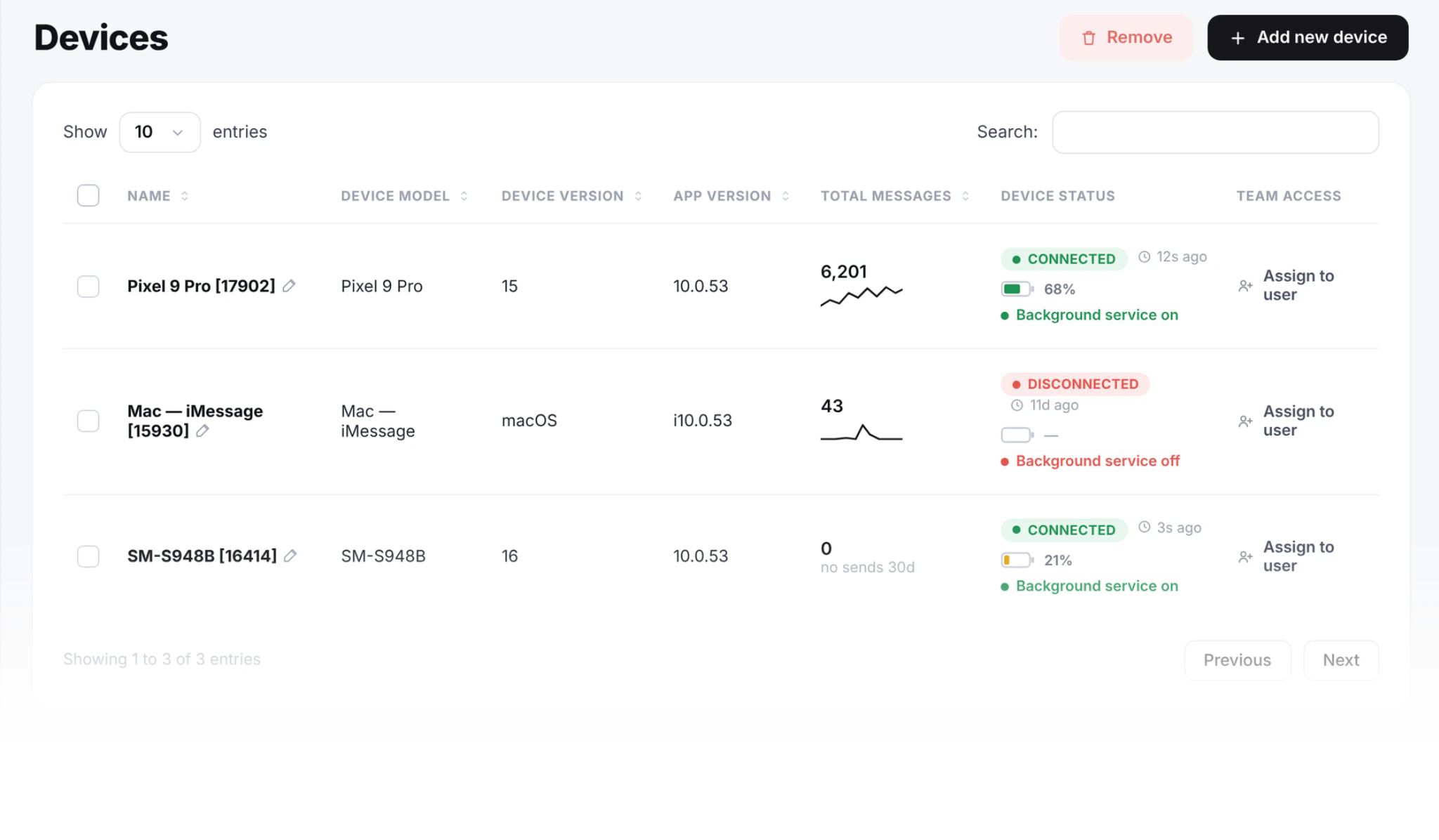
- Scan the pairing code shown on your SMS8 dashboard. The phone appears on your Devices page with its SIMs listed.
- Send a test from the dashboard to your own mobile number. It should arrive like any other text from that SIM. Reply to it and check the reply appears in your inbox.
Which power and battery settings keep it online?
This is the step that decides whether your gateway runs for weeks or stops overnight. Android saves battery by pausing apps it thinks are idle. Doze mode, app standby and each maker's own battery saver all do this. A gateway app that has been paused stops picking up send jobs, and messages wait as queued until the phone wakes up.
Turn off battery optimisation for SMS8
The exact menu names vary by maker and Android version, but the path is close to this:
- Stock Android and Pixel: Settings, Apps, SMS8, App battery usage, then choose Unrestricted.
- Samsung: Settings, Apps, SMS8, Battery, then Unrestricted. Also check Battery, Background usage limits, and make sure SMS8 is not in Sleeping apps or Deep sleeping apps. Adding it to Never sleeping apps is the safe choice.
- Xiaomi, Redmi and POCO: set Battery saver for SMS8 to No restrictions, and turn on Autostart for the app.
- OnePlus, Oppo and Realme: allow background activity and auto launch for SMS8, and turn off battery optimisation for it.
- Huawei and Honor: in App launch, switch SMS8 to manage manually and allow auto launch, secondary launch and run in background.
Leave the small SMS8 notification in place. Android needs that notification to keep a background service running, and hiding it can lead to the app being closed.
Power, screen and updates
- Keep it plugged in. A gateway phone lives on a charger. Use a decent charger and cable, and keep the phone somewhere it can stay cool, not under a stack of paper or in direct sun.
- Battery protection if your phone has it. Many recent phones offer an option to stop charging at around 80 to 85 percent. Turn it on. It is kinder to a battery that is plugged in all the time.
- Turn off the phone-wide battery saver. Power saving modes often restrict background data and sync for every app.
- Screen off is fine. SMS8 does not need the screen on. Let the screen time out to save power and heat.
- Plan for updates. System updates can restart the phone. After a restart, unlock it once and open SMS8 to check it says Connected. Some makers also reset battery settings after a big update, so check them again.
- Avoid aggressive cleaner apps. Task killers and phone cleaners close background apps on purpose. Uninstall them on a gateway phone.
Network
- Wi-Fi first, mobile data as backup. Turn on both. If Wi-Fi drops, the phone falls back to mobile data and keeps getting jobs.
- Keep Wi-Fi on during sleep. Some phones have a setting that turns Wi-Fi off when the screen is off. Set it to always on.
- Good signal. Put the phone where it has mobile signal for the SIM. A phone in a basement with one bar may connect to Wi-Fi fine and still fail to deliver texts.
How do I send messages through the gateway?
Once the phone is paired, you have several ways to send, and they all leave the same SIM.
From the dashboard
Type a number and a message in the SMS8 dashboard and send. Replies land in the shared inbox, threaded by contact. This is the quickest way to confirm everything works.
As a campaign
Import a CSV or Excel file with a phone column. Extra columns like first_name become merge tags, so "Hi {first_name}" reads as each person's name. SMS8 paces campaigns at one message every 10 to 30 seconds per SIM, which keeps your number in good standing. Quiet hours hold messages until morning, and anyone who replies STOP is opted out of every future campaign on your account.
From the tools you already use
SMS8 has official apps for GoHighLevel, Zapier, Make, WordPress and WooCommerce, and a Google Sheets add-on. n8n works through its HTTP Request node. The old phone becomes the SMS provider for those tools.
From your own code
One request sends a message. Put your API key in the X-Api-Key header:
curl -X POST https://app.sms8.io/api/v1/messages \
  -H "X-Api-Key: $SMS8_API_KEY" \
  --data-urlencode "number=+14155550100" \
  --data-urlencode "message=Your order #4412 is ready for pickup"
Leave out the device fields and your default phone sends. Add devices with a device ID to choose a phone, and simSlot to choose SIM 1 (0) or SIM 2 (1). Add prioritize=1 for login codes and alerts so they go ahead of a running campaign. The full field list is in the SMS8 API documentation, and the OTP verification API sends and checks codes in two calls if you want to use the phone for sign-up and 2FA.
For Node, the SDK and CLI are one install: npm install sms8-sdk.
How many messages can one old phone send?
From SMS8's side, as many as you want. The plan is unlimited and there is no fee per message. The real limits are your carrier's terms and the pace you send at.
For single messages, such as an order alert or a login code, a text usually reaches the other phone within a few seconds. For campaigns, SMS8 sends one message every 10 to 30 seconds on each SIM on purpose. Sending at a measured rhythm is what keeps a mobile number healthy. If a list takes too long at that pace, the answer is more SIMs, not a faster pace on one number: use both slots of a dual-SIM phone, or pair a second old phone and let SMS8 rotate across them.
The phone model matters much less than people expect. An old handset sends a text just as well as a new one. Where an old phone can fall short is staying connected, which is why the battery and network settings above matter more than the processor.
How do I keep it running for weeks?
A well set up gateway phone mostly needs to be left alone. A short routine catches the rare problem:
- Check the Devices page. It shows each phone, its SIMs and when it was last seen. Developers can call
GET /api/v1/devices, which returns battery, signal, SIMs and last seen time, and alert when a phone has been quiet too long. - Watch for messages stuck as queued. Messages wait while a phone is offline and send when it reconnects. A growing queue means the phone is asleep, offline or unplugged.
- Use webhooks for delivery. SMS8 webhooks are signed and retried for up to 30 days, so your system hears about sent, delivered and failed messages even if your server was down for a while.
- After any restart, open SMS8 once and check it says Connected.
- Keep SIM credit topped up on prepaid plans. A SIM without credit fails every send.
- Label the phone. A sticker on the back with "SMS8 gateway, do not unplug" saves a lot of confusion in a shared office.
Common problems and fixes
| What you see | Likely cause | Fix |
|---|---|---|
| Phone shows offline | No Wi-Fi or data, or the app was paused | Check the connection, set SMS8 to unrestricted battery use, reopen the app |
| Messages stay pending | The phone is not picking up jobs | Open SMS8 on the phone, confirm Connected, check the charger and battery settings |
| Sent but not delivered | No mobile signal, no credit, or the carrier refused the text | Move the phone for better signal, top up the SIM, send a test by hand |
| Stops every night | Wi-Fi off in sleep, or a scheduled battery saver | Keep Wi-Fi on during sleep, turn off scheduled power saving |
| Stops after an update | The update reset app battery settings | Set SMS8 back to unrestricted and reopen it |
What does it cost?
The phone is one you already own, and the texts are covered by your mobile plan. SMS8 is a flat plan: USD 29 a month for 1 connected phone or Mac, USD 89 for 5 and USD 229 for 20, with unlimited SMS and MMS and yearly billing at half the monthly price. There is no fee per message from SMS8. If you plan to add a second or third old phone later, the five-device plan leaves room. See SMS8 pricing for the full plan comparison.
Checklist before you go live
- Phone on Android 7 or newer, factory reset, healthy battery.
- SIM with a texting plan whose fair use terms you have read, and credit if prepaid.
- SMS8 installed, signed in, paired, test message sent and replied to.
- Battery optimisation off for SMS8, Autostart on where the phone has it, notification left visible.
- Charger in, battery protection on if available, Wi-Fi kept on during sleep, mobile data as backup.
- A plan for opt-outs: STOP in your campaign messages, and only people who agreed to hear from you.
Why choose SMS8 for your old phone
SMS8 turns the phone in your drawer into a gateway in minutes.
- Your own number. Texts leave from the SIM in your own Android phone, so customers see a number they know and can reply to.
- A flat price with unlimited messages. USD 29 a month for one phone or Mac, USD 89 for five and USD 229 for twenty, with unlimited SMS and MMS and no per-message fee. Yearly billing is half the price.
- No A2P 10DLC filing. Texts go person-to-person from your SIM, so there is no brand, campaign or monthly campaign fee to manage.
- API, MCP and integrations. A REST API with signed webhooks, an MCP server at mcp.sms8.io, and official apps for GoHighLevel, Zapier, Make, WordPress and Google Sheets.
- Setup in minutes. Install the app, pair the phone and copy your API key. The 3-day trial includes 30 messages and needs no card.
Start the 3-day trial with 30 messages and no card, or compare plans on the SMS8 pricing page.