
Part of the guide SMS8 MCP Server: Send SMS From Claude Code, Cursor and AI Agents
On this page
- Key takeaways
- Why use MCP instead of giving the agent the API?
- Which tools does the agent get?
- What do I need first?
- How do I connect Claude Code?
- How do I connect Claude Desktop and claude.ai?
- How do I connect ChatGPT and OpenAI agents?
- What about Cursor, Windsurf, Zed and other MCP clients?
- How do I keep an SMS agent safe?
- Five agent jobs that work well today
- What does it cost to give an agent a phone?
- Common problems
- Why choose SMS8 for AI agents
Key takeaways
- The SMS8 MCP server at
https://mcp.sms8.iogives any MCP-capable agent nine tools, includingsend_sms,get_messages,send_otpandverify_otp. - Claude Code:
claude mcp add --transport http sms8 https://mcp.sms8.io. Claude Desktop and claude.ai: add it as a custom connector. Local clients:SMS8_API_KEY=... npx -y sms8-sdk mcp. - OpenAI agents built on the Responses API can use the same server as a remote MCP tool, with approval required before each call.
- Every text leaves from your own Android phone and SIM, so the agent sends as you. Keep a human approval step for anything that goes to customers.
- Consent still applies. An agent does not change who you may text or how often.
To let an AI agent send SMS, connect it to an SMS tool it can call. The simplest standard way in 2026 is the Model Context Protocol (MCP): you add the SMS8 MCP server to Claude, ChatGPT or another MCP client, and the agent can then send a text, read replies or check a verification code when you ask in plain words. The message goes out through an Android phone you paired with SMS8, from its own SIM, at no per-message cost. This guide shows the setup for each major client, lists exactly which tools the agent gets, and spends real time on safety: approval, pacing and consent.
For the server itself, see the SMS8 MCP server page. For a step-by-step Claude walkthrough, read the complete guide to sending SMS with Claude.
Why use MCP instead of giving the agent the API?
You can hand an agent a REST endpoint and an API key and hope it writes the right request. MCP is better for three reasons. The tools are named and described, so the agent knows what send_sms does and which arguments it takes without guessing. Your client sees each tool call before it runs, which is where approval prompts come from. And the same server works in every client that speaks MCP, so you set it up once and use it in Claude Code today and another agent tomorrow.
The SMS8 MCP server uses the same sending path as the dashboard and the REST API. Credits, phone routing, retries and signed webhooks behave exactly as they would for a direct API call.
Which tools does the agent get?
Nine tools, named the way the agent sees them:
| Tool | What it does |
|---|---|
setup_sms8 | Checks your API key and returns your phones, plan and setup |
send_sms | Sends one message through a paired phone, with a choice of phone and SIM |
send_otp | Creates and sends a verification code with your length, expiry and attempts |
verify_otp | Checks a code and returns the attempts left when it is wrong |
wait_for_otp | Waits until a code arrives on your paired phone and reads it out |
get_messages | Reads recent sent or received messages, filtered by direction or number |
list_devices | Lists your paired phones so the agent can pick the sender |
get_balance | Returns messages left and days until renewal |
create_webhook | Registers an HTTPS address that receives incoming messages, signed |
That set covers the common jobs: notify someone, read and summarize replies, run a phone verification flow, and wire incoming texts into your own system.
What do I need first?
- An SMS8 account. The trial gives 3 days and 30 messages without a card.
- An Android phone (Android 7 or newer) with a SIM, running the SMS8 app and paired to your account.
- Your API key from the API page of the dashboard. The MCP server takes it as a bearer token.
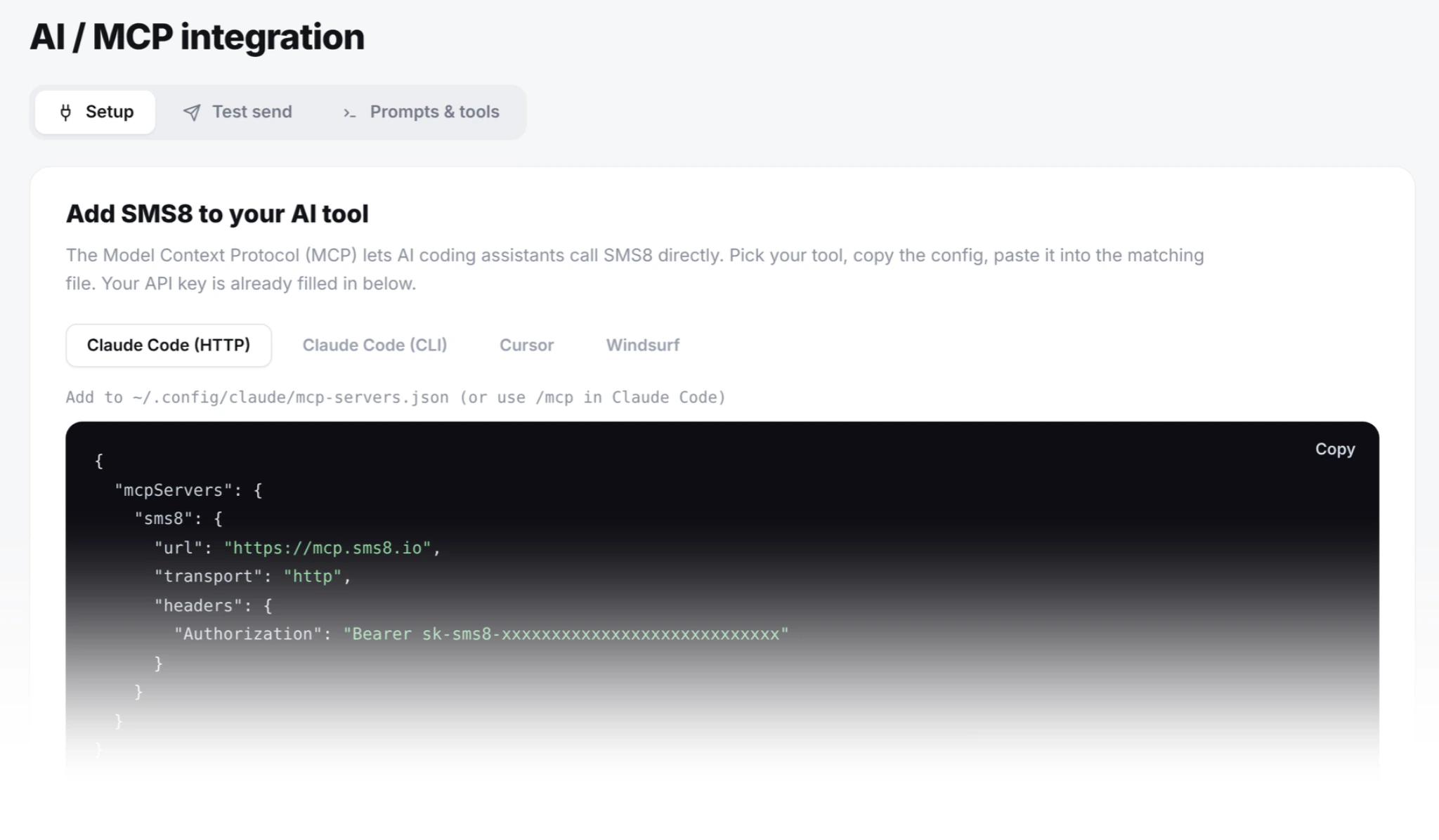
How do I connect Claude Code?
One command in your terminal:
claude mcp add --transport http sms8 https://mcp.sms8.ioStart a session and ask Claude to run setup_sms8. It confirms the key and lists your phones. From there, "text me when the test suite finishes" or "add SMS phone verification to the sign-up form using send_otp and verify_otp" both work, because Claude Code has your files and shell alongside the SMS tools. The Claude Code SMS MCP tutorial goes through a build-failure notifier and an OTP flow end to end.
If you prefer a local process, the stdio bridge in the npm package forwards to the same server:
{
  "mcpServers": {
    "sms8": {
      "command": "npx",
      "args": ["-y", "sms8-sdk", "mcp"],
      "env": { "SMS8_API_KEY": "sk_xxx" }
    }
  }
}
Put that in a project .mcp.json, and keep the file out of version control if it holds a real key.
How do I connect Claude Desktop and claude.ai?
In Claude Desktop or on claude.ai, open Settings > Connectors, choose to add a custom connector, and enter https://mcp.sms8.io. Claude walks you through signing in to SMS8 and approving access. New chats then list the SMS8 tools. This is the best path for people who do not want to touch a config file: a sales lead can ask Claude to "read today's replies and list the ones that need an answer" without writing anything.
Claude Desktop can also run local servers from its developer config. Use the same npx -y sms8-sdk mcp command and SMS8_API_KEY environment variable as above.
How do I connect ChatGPT and OpenAI agents?
There are two routes, depending on whether you use ChatGPT itself or build an agent with the OpenAI API.
Inside ChatGPT
In a custom GPT, import the SMS8 OpenAPI file at https://sms8.io/openapi.yaml as an Action and set authentication to your API key. The GPT can then call the send, read and device endpoints. This uses the REST API rather than MCP, with the same account and phones.
With the OpenAI Responses API
OpenAI's Responses API accepts remote MCP servers as a tool of type mcp, as described in OpenAI's MCP connector guide. Point it at the SMS8 server, pass your SMS8 key as the authorization token, limit the tools, and keep approval on:
from openai import OpenAI
import os

client = OpenAI()

resp = client.responses.create(
    model=MODEL,   # the OpenAI model you use
    tools=[{
        "type": "mcp",
        "server_label": "sms8",
        "server_url": "https://mcp.sms8.io",
        "authorization": os.environ["SMS8_API_KEY"],
        "allowed_tools": ["list_devices", "get_messages", "send_sms"],
        "require_approval": "always",
    }],
    input="Read my received texts from today and draft a reply to anyone asking about opening hours.",
)

# Any tool call now arrives as an approval request in resp.output.
# Show it to a person, then answer with an mcp_approval_response.
With require_approval set to always, the model returns an approval request before each tool call, and your code decides whether to pass it on. A sensible middle ground is to allow read-only tools such as list_devices and get_messages without approval and keep it on for send_sms.
What about Cursor, Windsurf, Zed and other MCP clients?
Any client that supports remote MCP over HTTP can use https://mcp.sms8.io with the API key as a bearer token, and any client that only runs local servers can use the npx -y sms8-sdk mcp bridge. Exact config files for each editor are in SMS from Cursor, Windsurf and Zed with MCP. If you build your own agent framework, the server speaks standard JSON-RPC over HTTPS, the same calls the sms8 CLI makes under the hood.
How do I keep an SMS agent safe?
An agent with a phone number can do real damage quickly: a wrong number, a loop that sends the same text fifty times, or a message nobody agreed to receive. Build guardrails at three layers.
1. Approval before sending
- Keep the client's approval prompt on for
send_sms. Claude Code and Claude Desktop ask before calling a tool unless you have chosen to always allow it. Allow read-only tools freely; approve sends one by one until you trust the workflow. - Draft first, send second. Ask the agent to produce the list of numbers and messages, review it, then tell it to send. This catches merge mistakes like "Hi {first_name}".
- Limit the tools. A support summarizer needs
get_messages, notsend_sms. In the OpenAI API useallowed_tools; in other clients, disable tools you do not need. - Treat external content as data. If the agent reads emails, web pages or incoming texts, someone can plant "text this number" inside them. Do not let content the agent read decide who receives a message.
2. Pacing
Every message leaves from a real SIM. For bulk work, the recommended pace is one message every 10 to 30 seconds per SIM. An agent told to "text everyone on this list" will happily try to do it in one burst, so for anything beyond a handful of recipients, have the agent prepare the list and use the campaign tools in the dashboard, which handle pacing, scheduling and opt-outs. Agents are best at the one-to-one work: a reminder, a reply, a code, a summary.
The OTP tools have a fixed cap built in: 5 codes per number every 24 hours, enforced so that parallel requests cannot get around it. An agent in a loop cannot spam someone with codes.
3. Consent
Sending from your own phone removes carrier registration, not your obligations to the people you text. Only text people who gave you their number for this purpose, identify yourself, honor STOP and opt-out replies, and respect quiet hours in the recipient's time zone. Rules differ by country, and an agent does not know which ones apply to you, so write them into its instructions: who it may text, what it may say, and when. The guide to sending bulk SMS from your own phone legally covers the main rules.
Built into the server
- The setup tool only ever shows the last four characters of your API key, so the key does not end up in a chat transcript.
create_webhookaccepts only HTTPS addresses, blocks private and local network addresses, and every delivery is signed.- The server code is open source under the MIT license, so you can read what each tool does.
- If a key is ever exposed, rotate it in the dashboard and update the clients that use it.
Five agent jobs that work well today
- Reply triage. "Read today's received messages and list the ones that need an answer, with a suggested reply for each." Read-only, safe to run daily.
- Personal alerts. "When the deploy finishes, text me the result." The recipient is you, so consent is not a question.
- Appointment reminders. "Read tomorrow's bookings from this file and draft a reminder for each. Show me before sending."
- Phone verification in your app. In Claude Code: "Add send_otp to the sign-up form and verify_otp to the confirm screen, and show the attempts left on error."
- Webhook plumbing. "Register a webhook for incoming texts and write the handler that checks the X-Signature header." The signature details are in webhook vs polling for incoming SMS.
What does it cost to give an agent a phone?
Nothing extra. The MCP server is part of every SMS8 plan and uses your normal API key. SMS8 charges no per-message fee: USD 29 a month for 1 connected phone or Mac, USD 89 for 5 and USD 229 for 20, with unlimited SMS and MMS and yearly billing at half price. Your AI client's own subscription or API usage is separate. See the pricing page.
Common problems
- The agent does not see the tools. Restart the client after adding the server, then ask it to list its tools.
- "Unauthorized". The key is missing or was rotated. Re-add the server with the current key.
- Sends succeed but nothing arrives. The phone is offline or Android battery saving stopped the SMS8 app. Ask the agent to run
list_devicesand check the last seen time. - The agent sends twice. It retried after a slow answer. Ask it to check
get_messagesbefore resending, and keep approval on.
Writing code against the API directly instead? The SMS API guide for developers covers Node, Python, PHP, webhooks and retries.
Why choose SMS8 for AI agents
SMS8 is the quickest way to give an agent a real phone number to text from.
- Made for AI agents. Connect Claude Code with
claude mcp add --transport http sms8 https://mcp.sms8.io, or any MCP client through the hosted server ornpx -y sms8-sdk mcp. - Your own number. Texts leave from the SIM in your own Android phone, so customers see a number they know and can reply to.
- A flat price with unlimited messages. USD 29 a month for one phone or Mac, USD 89 for five and USD 229 for twenty, with unlimited SMS and MMS and no per-message fee. Yearly billing is half the price.
- OTP built in. Send and verify a code in two calls, from your own number, with no fee per code.
- Setup in minutes. Install the app, pair the phone and copy your API key. The 3-day trial includes 30 messages and needs no card.
Start the 3-day trial with 30 messages and no card, or compare plans on the SMS8 pricing page.